
Control panel
The last icon in the menu column, called "Control Panel".,  will only be enabled and visible to those users who have been assigned the corresponding permissions of the group "Administrator". When this button is clicked, a new window is opened, showing another series of icons in a column, which will allow Waidok to be configured in all the necessary aspects for the application to manage documentation, users and other types of customizations.
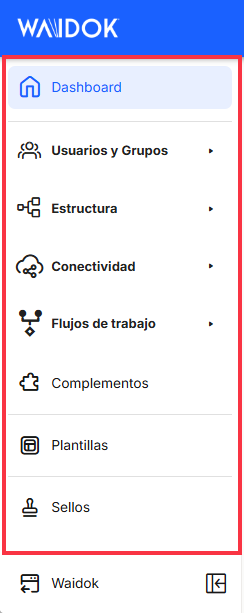
The last icon in the "Control Panel".,  will allow you to return to the "Dashboard" or to the home page of "DocShare Cloud".
Once you access the "Control panel", if you have the necessary permissions, an initial screen will be displayed with links to go directly to some of the sections most frequently used by the user logged into the system, along with KPIs summarizing the status of tool license usage. From this area, when the user is in any of the menus, clicking on the home icon  the system offers this startup screen again.
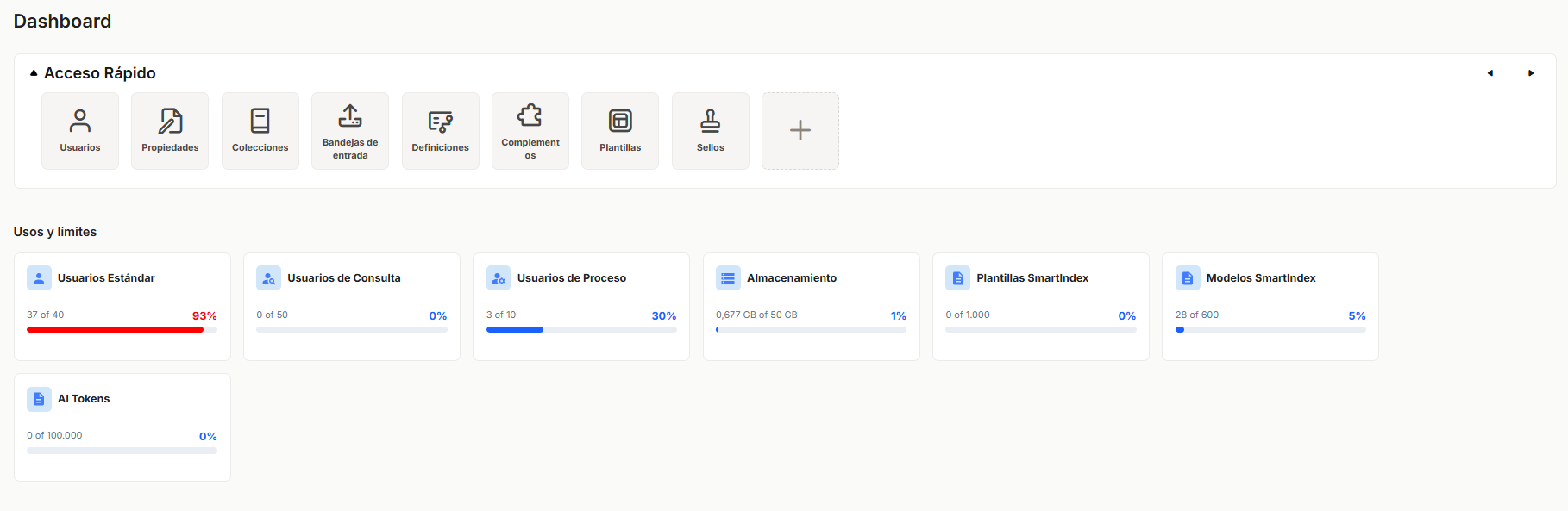
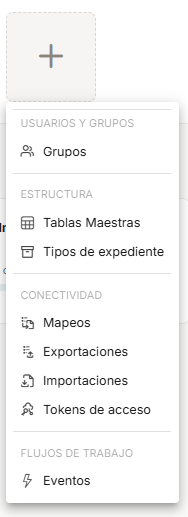
You can create a shortcut for the sections most frequently used by the user. When you hover your mouse over one of the empty slots, an option to "Add shortcut" appears. If you click on the +, you can add any of the sections that are not yet available as shortcuts. These sections will change depending on how each user uses the application.

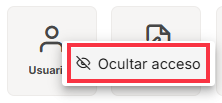
To delete an access, click on the three dots that appear in the upper right corner when you hover over the access. 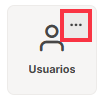
and we will have the option to "Hide access."
No comments to display
No comments to display