
Searches
Waidok offers two main types of search:free text search by words and advanced search by metadata. Both allow you to filter by entities (documents, files, tasks) using a drop-down menu next to the top bar.
Free text search
This search allows users to enter search terms in a single field and obtain results based on matches in the full text of documents and their names, applying relevance criteria (e.g., appearance in title, modification date, user who registered the document, etc.), without requiring the prior definition of structured filters.
To use the simple search, there is a search bar at the top of the application.

By default, the drop-down menu to the left of the search box will search all elements of the tool: documents, files, and tasks. If you want to search a specific entity, you can expand the menu and select the option you want.
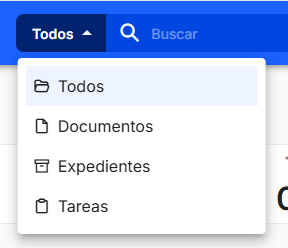
After making a selection, the entity being searched for will be displayed.

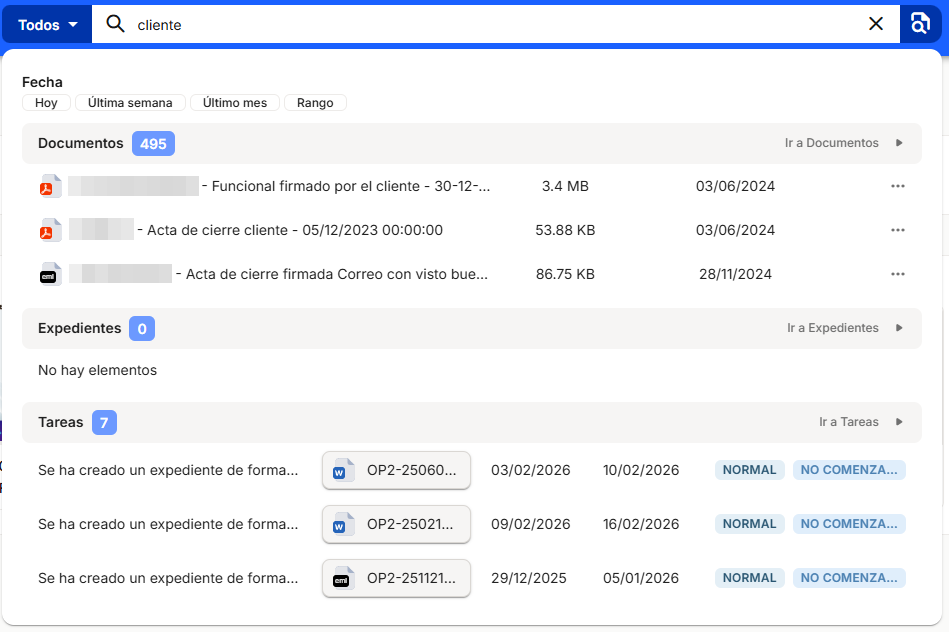
To perform a search, you can enter one or more terms that you want to find in the content of the documents or in the names of the documents, files, and/or tasks.
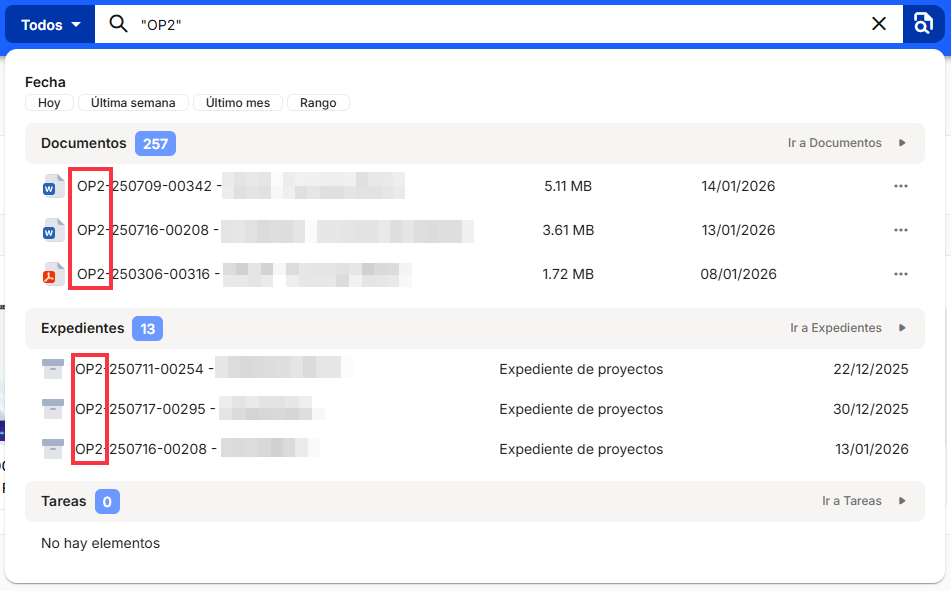
Additionally, we can perform exact searches for any of the terms. To do this, the text to be searched for must be entered in quotation marks.
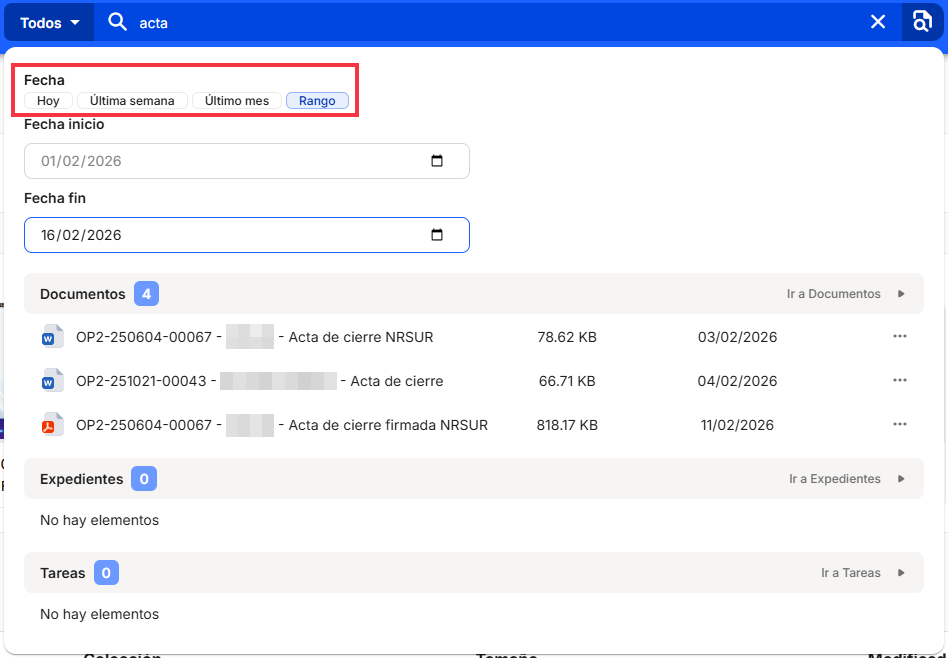
We can use various date filters to select those entities that have been registered in the tool on the current day, in the last week, in the last month, or in a date range selected by the user.
Please note: the dates used to filter the free text search are, as we have said, the dates on which the document was uploaded to Waidok. These should not be confused with the dates of the document itself, as they do not necessarily correspond to the date on which it was uploaded to the tool.
When you perform the search, a summary will be displayed with the three most relevant items for each element, unless you have previously selected only one. If you want to see a table with the complete set of items found, you can do so from the "Go to Documents," "Go to Files," or "Go to Tasks" option, as appropriate:
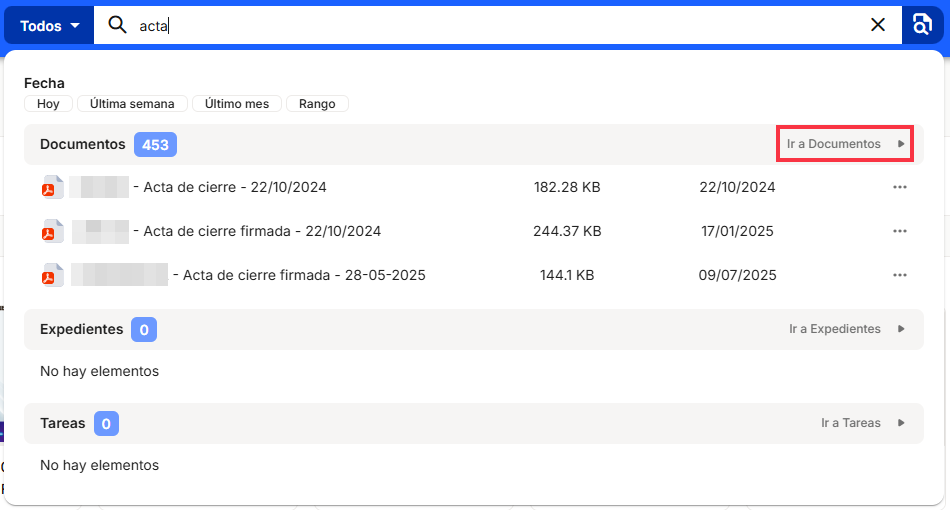
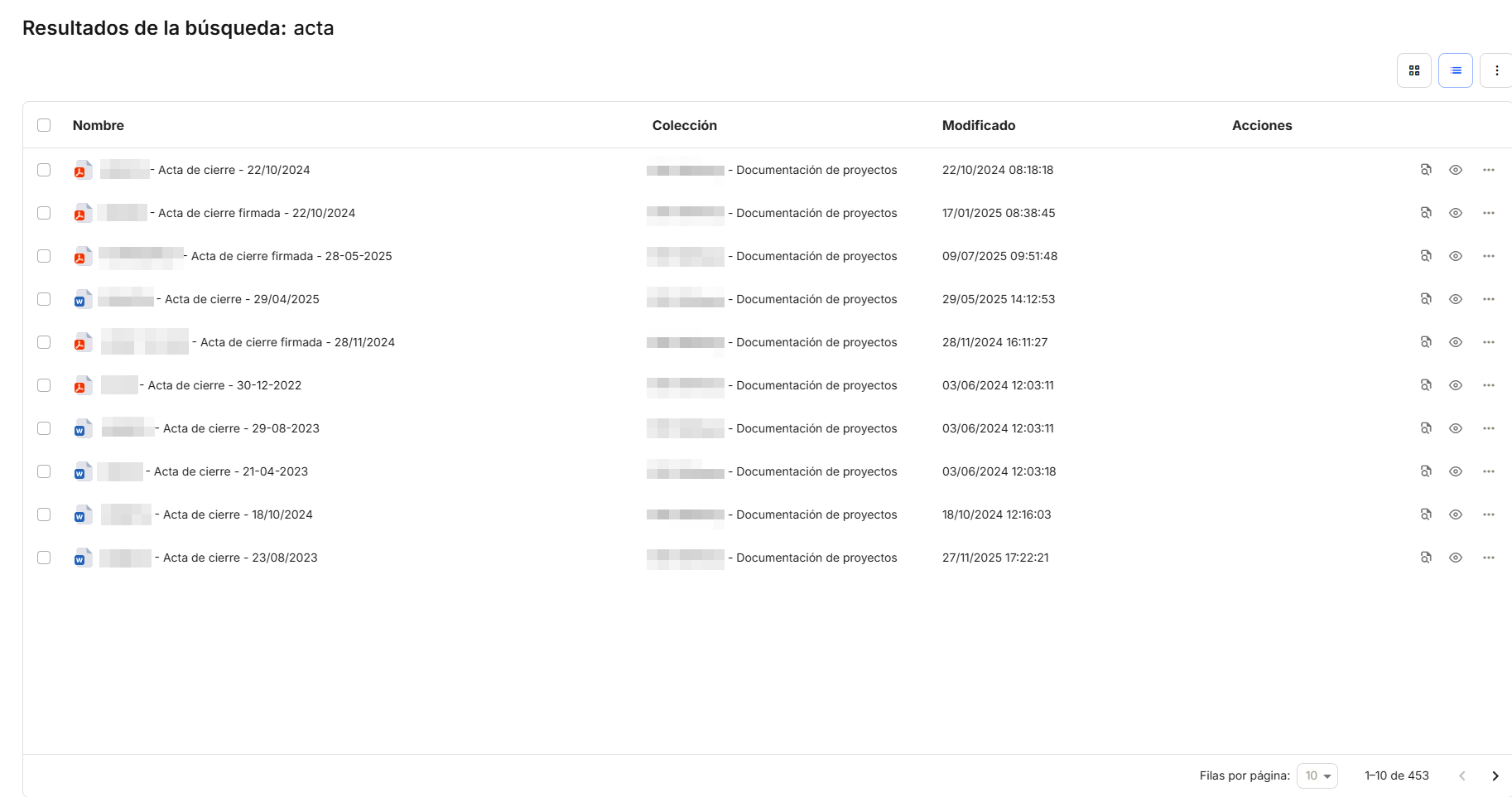
From there, we can access the search results window, where we will have all the options described in the previous sections on working with documents.
Advanced search
Advanced search allows us to use metadata from documents, files, or tasks to filter the necessary items.
To access the Advanced Search panel, click on the button to the right of the text box seen in the free text search.

By default, the drop-down menu to the left of the search box is set to search all elements of the tool: documents, files, and tasks. In the case of advanced search, if we leave that option selected, it will take us to the advanced document search panel. If we want to search in a specific entity, we can expand the menu and select the option we want.
Since the windows differ from one another depending on the type of element selected, let's look at them one by one.
1. Advanced document search
If we access the advanced document search, we will see a search results window with a panel on the left-hand side that allows us to filter documents based on their metadata values and perform other functions.
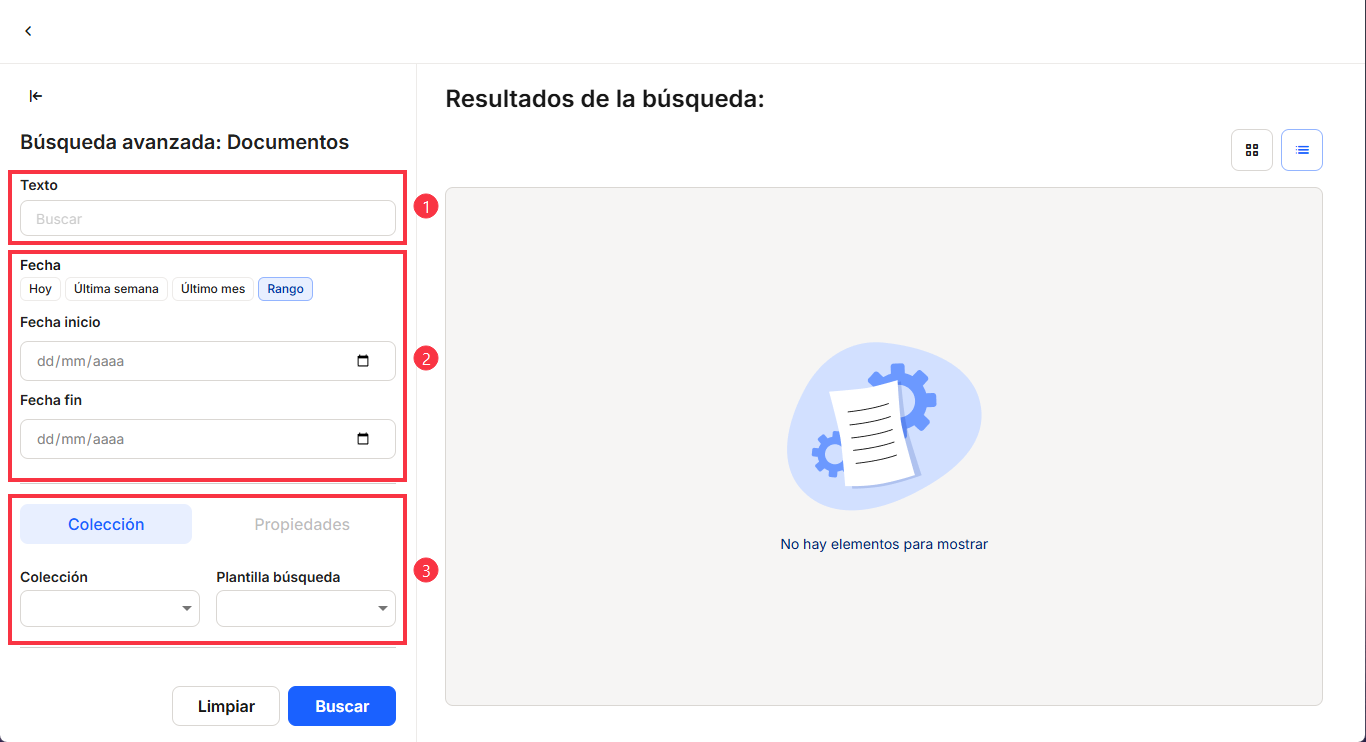
- Text box that searches for the terms indicated in the body of the documents and in the name.
- Date filters that work like those in free text search.
- Guided metadata search by collection and search template.
As the first two points have been covered previously (if not, please see Free Text Search), we will focus on the options in block 3. From here, you can select a specific collection to search by the properties of that collection by expanding the Collection list.
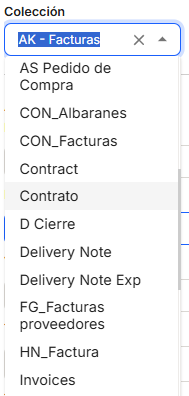
The collections available in the drop-down menu will only be those to which the user registered in the tool has access.
When one of the collections is selected, all the properties of that collection will appear below so that you can search by their values.
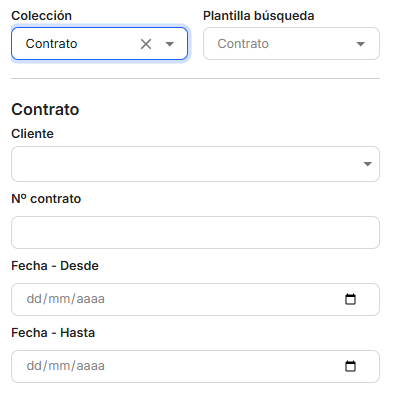
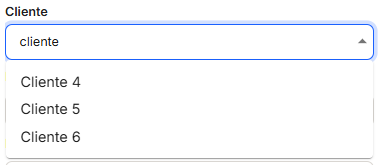
To fill in the property data, the property type must be taken into account. For example, if it is a value list property, you can start typing to see the results that are the same within the list.
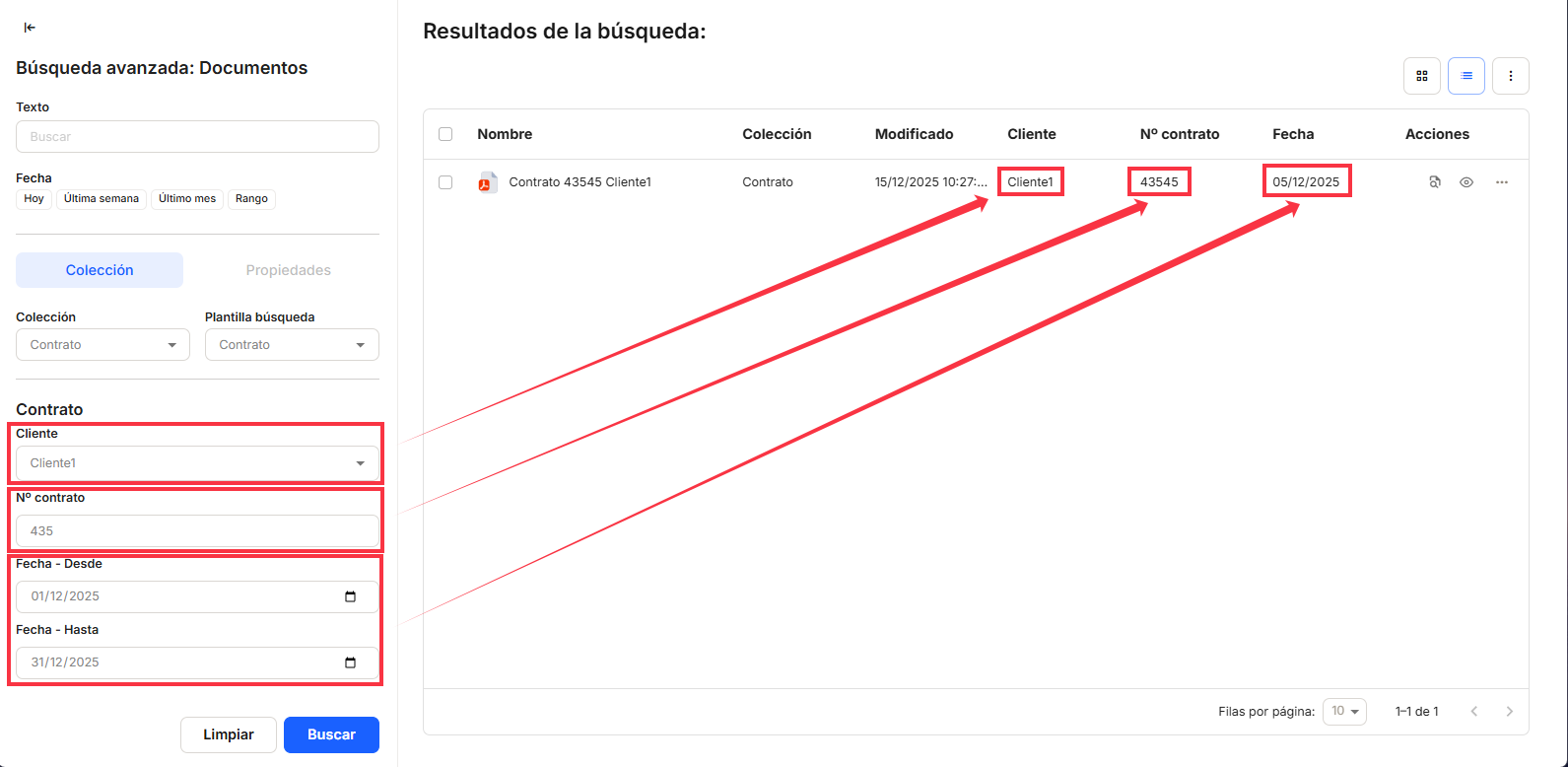
If it is a line of text, the text entered must begin as the value of the field to be searched.
If we want to search for a date-type property, the system automatically offers us two fields: From and To. This allows us to search within a date range that includes the documents to be retrieved.
In the following example, we will see how we can combine all these types of properties:
No comments to display
No comments to display