
Documents. Local edition
By clicking on a document in Waidok or on the "View" icon  you will access the display window for that document. From this window, you can edit the document locally and then upload a new version of it using the button.
  .
.
We can also perform the same option from the three dots located to the right of the documents in the tool tables or in the preview thumbnails.

We can see that a document is being edited locally by one of the system users because the document status will be "Editing." In addition, above the document properties, a button will appear to upload the new version of the document once it has been edited locally by the user.
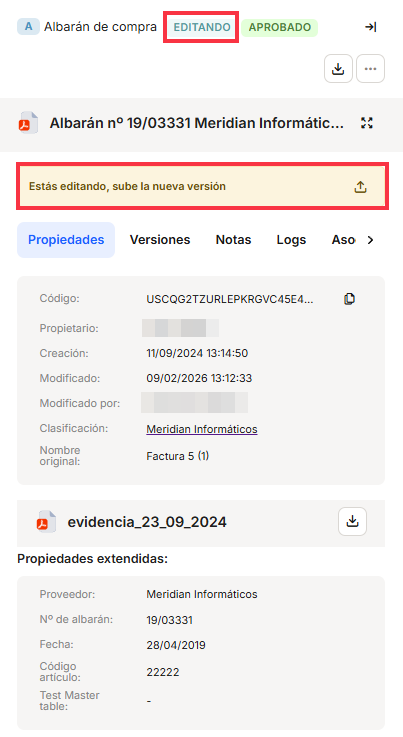
When a document is moved to Online Editing, the document is locked and cannot be edited until the modified document is uploaded or until it is released.
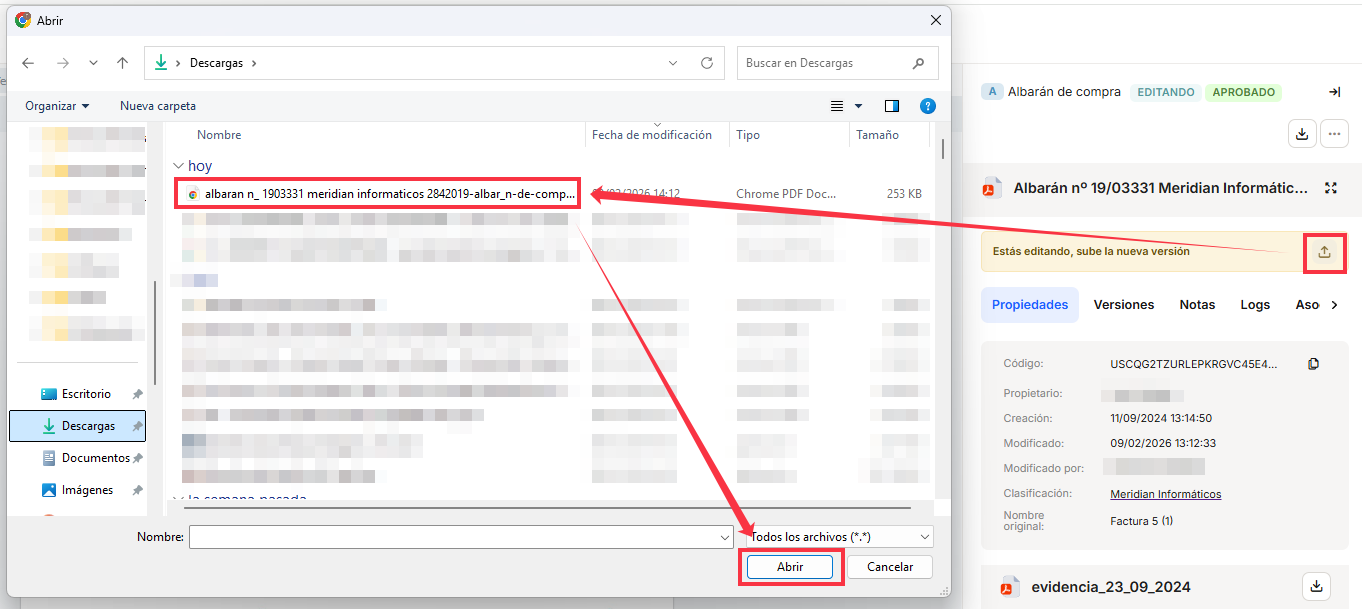
After making the corresponding changes, you can update the document by clicking on the button indicated above and selecting the new document that will replace the previous one.
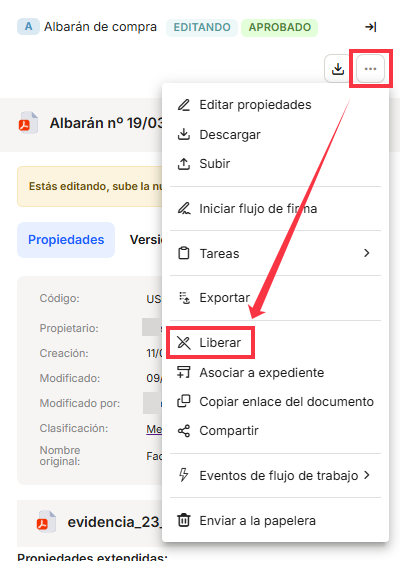
You can also unlock a document if, ultimately, no updates have been made to it or if it is no longer necessary to keep it locked. To do this, click on the three dots to the right of the document in the same window and select the "Unlock" option.
No comments to display
No comments to display