
Menu. Stamps
 STAMPS
This menu option will offer users all thestamps that have been previously generated and that can be used in different collections.
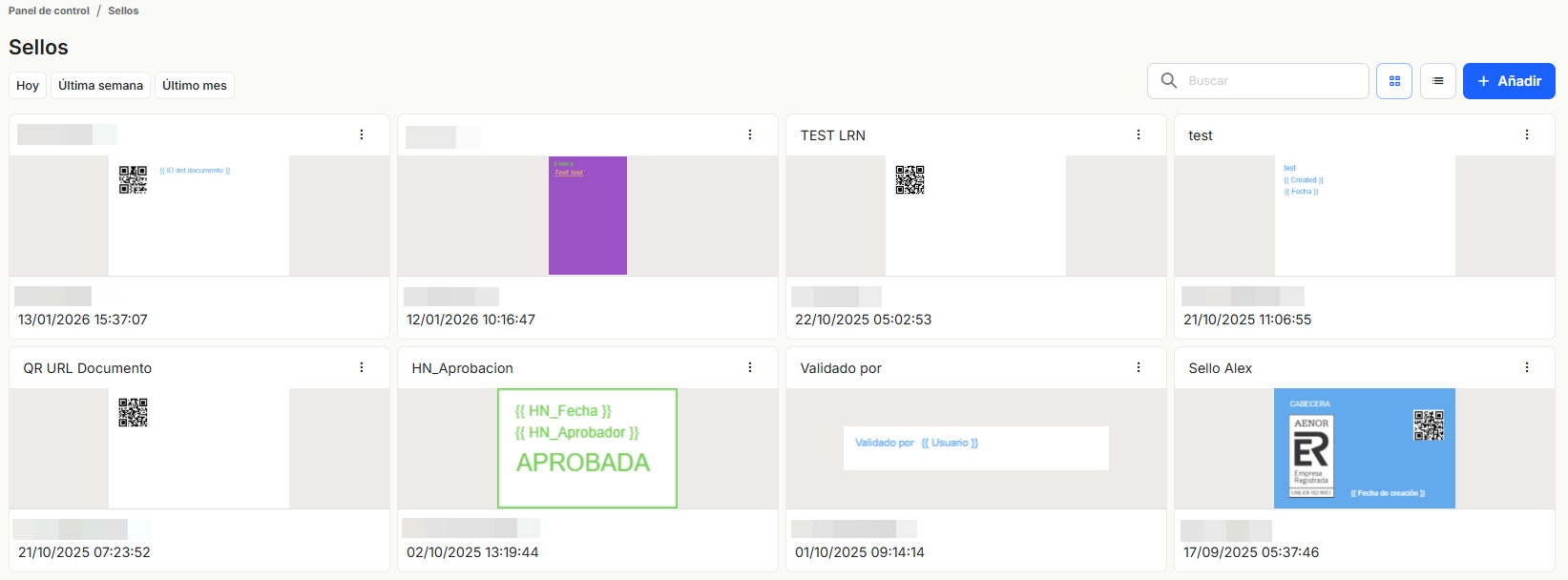
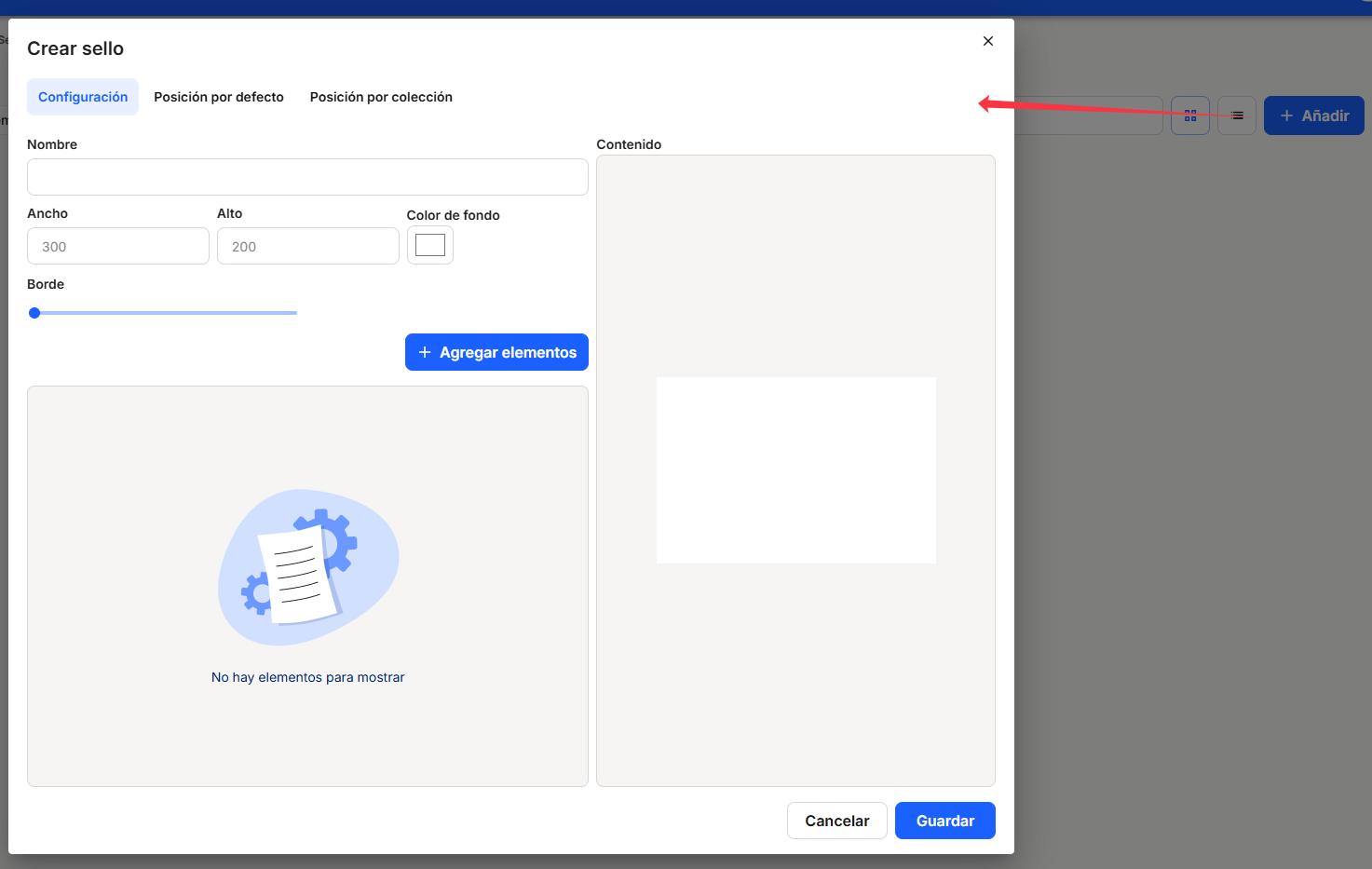
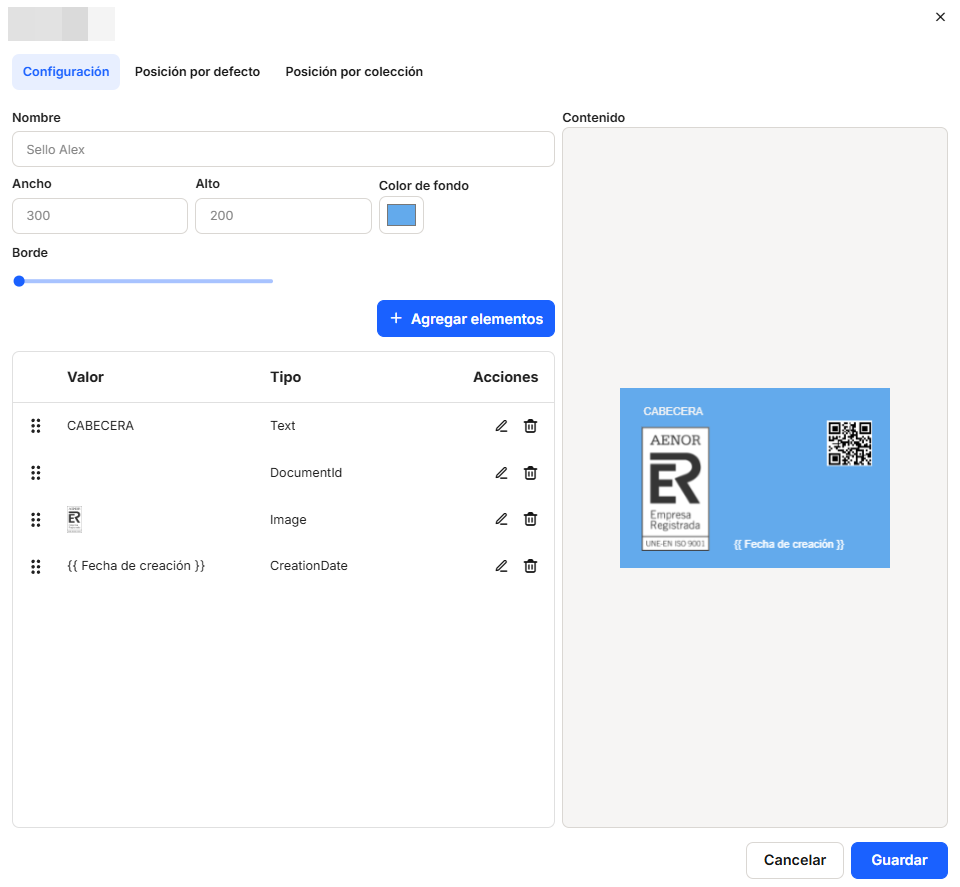
To create a new stamp, click on the "+Add" button. In the Create Stamp window, the first tab is Main Stamp Settings. Give the stamp a name so you can identify it. You can change the width and height of the stamp in pixels, as well as change the background color. You can also add a border to the stamp in different thicknesses.
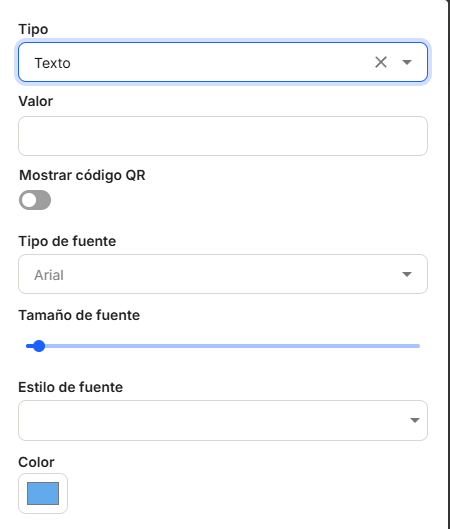
To add elements to the stamp, click on "+ Add elements." This will open a window on the right that will allow you to add different types of dynamic and static elements to the stamp.
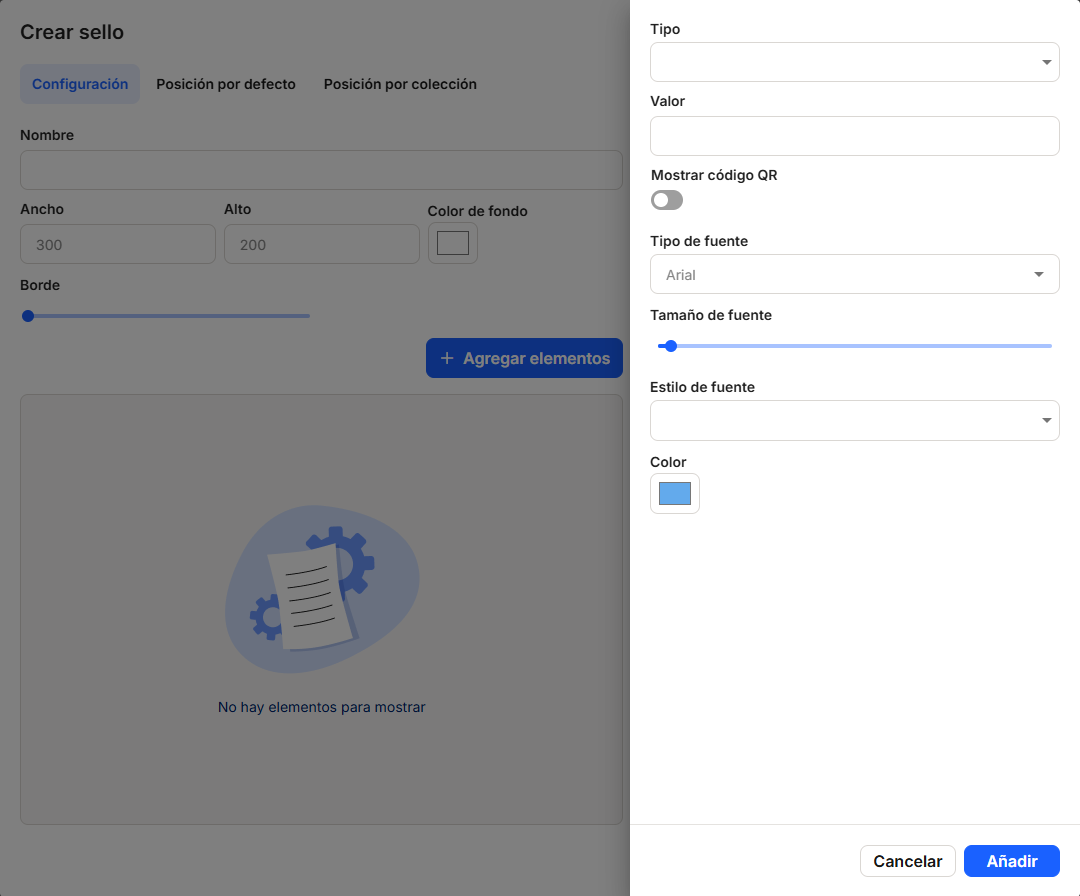
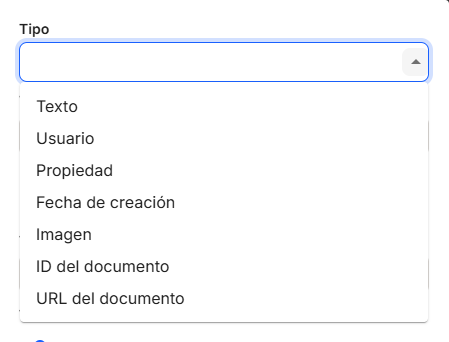
- In "Type," we can add the following elements:
- a fixed text,
- the user dynamically seals,
- the value of a property in the sealed document,
- the date the stamp was created,
- an image,
- the ID of the sealed document,
- the URL of the document within Waidok.
Except for the image, the other options allow you to customize the text you enter with various features such as font type, size, style (italics, bold, underlined, and strikethrough), color, and even display the value entered as a QR code.
After entering all the elements, you can manually position them in the preview on the right until you are satisfied with the design. Once finished, you can save it by clicking the "Save" button at the bottom right of the window.
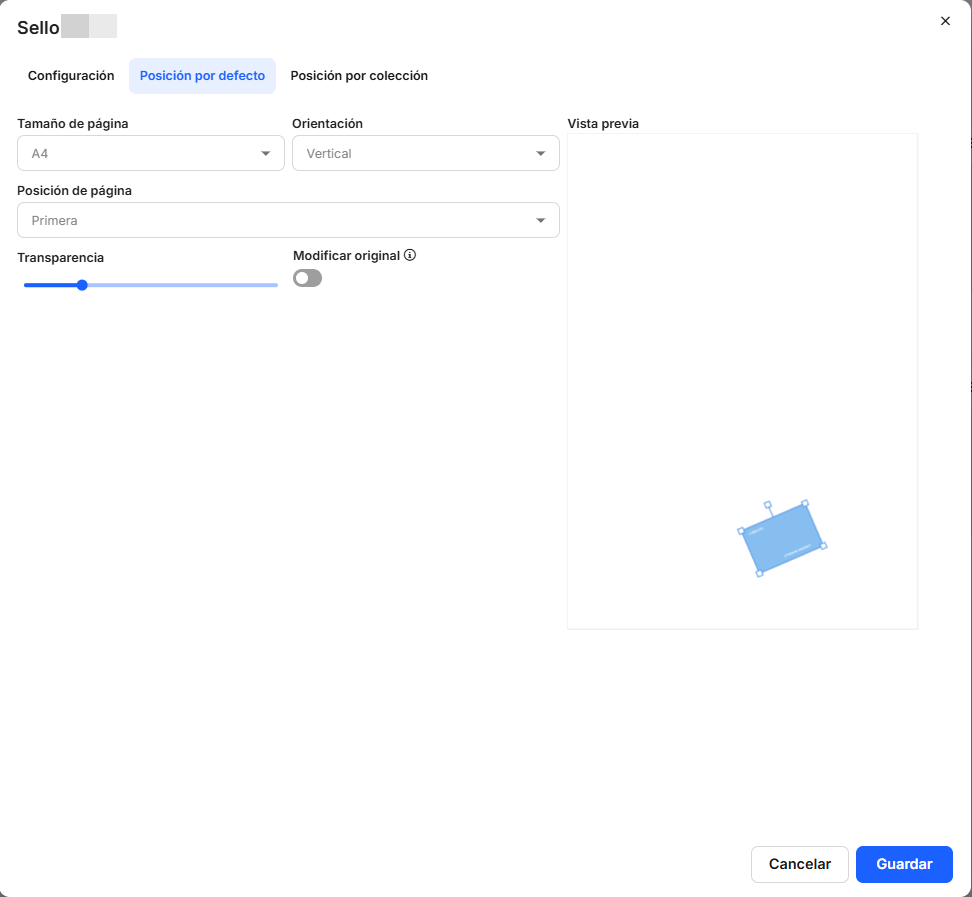
To the right of the Settings tab, we have the default position of the seal within the page. We can see the size and position occupied by the seal in a preview on the right as we modify its characteristics (orientation, transparency, etc.). We can also choose different page sizes to see the final result.
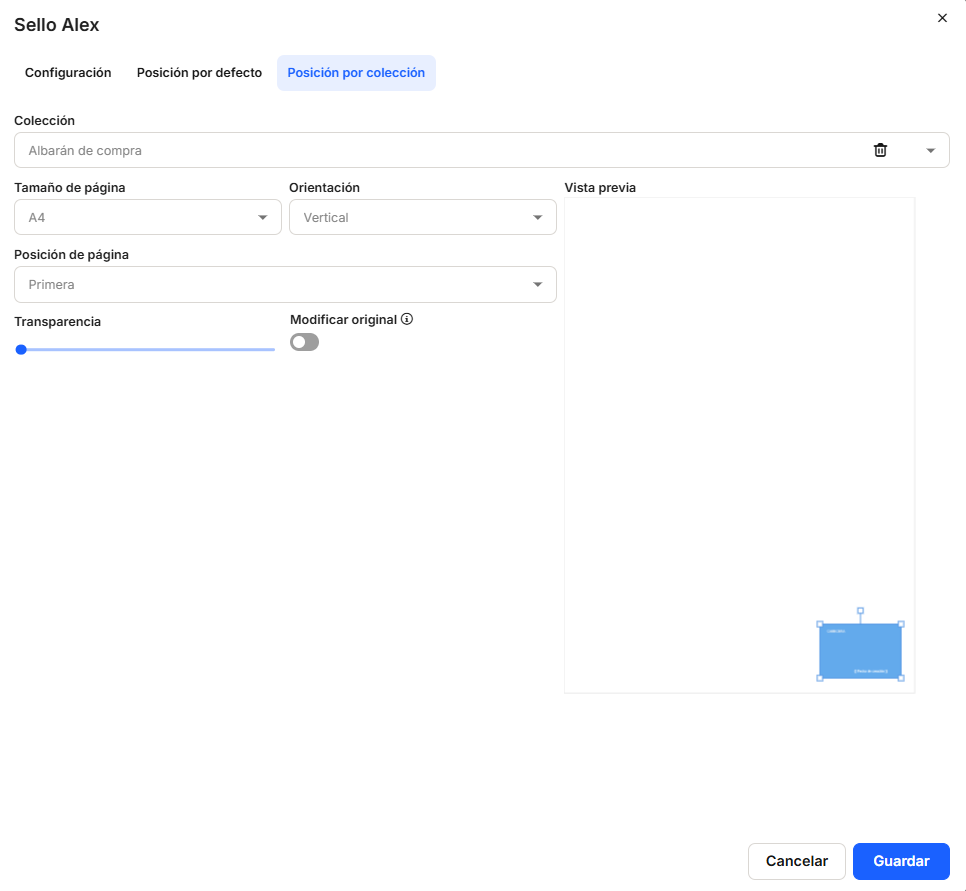
In the last tab available, we can choose a specific position and characteristics for a single collection in the document manager. The characteristics are the same as in the Default Position window, but we can choose where and how the stamp will be placed in each of the project's collections.
Once the seal has been fully configured, we must use theSave optionto make it available in the environment. If you disagree or there have been errors in the configuration, use theCancel option.
No comments to display
No comments to display