
Event generation
 EVENTS
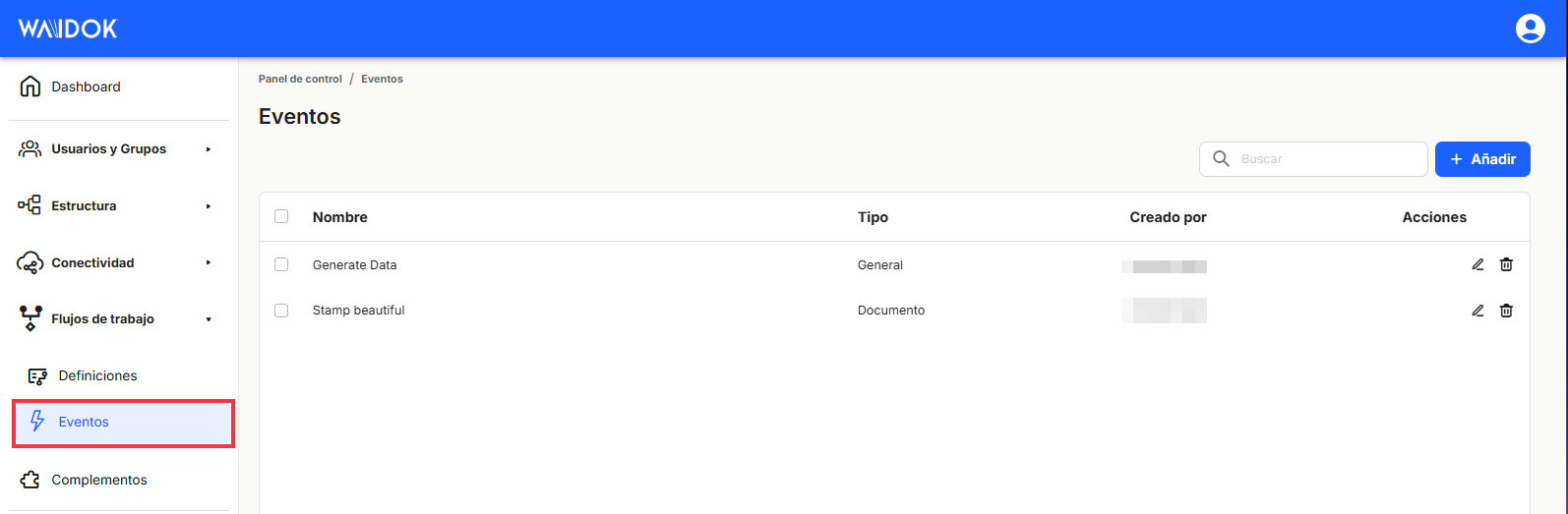
From this section of the menu, users can view a table listing all the events that have been generated. The user will be able to define events in order to manually execute workflows from the documents or files that are registered in the application.
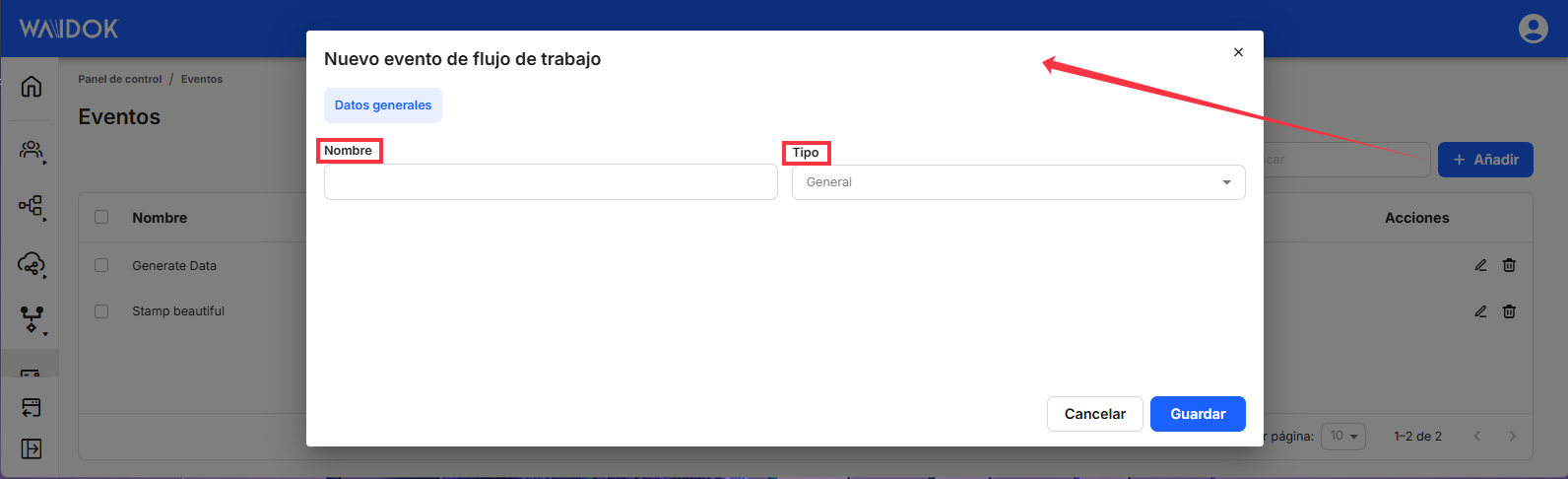
By clicking "Add," the application displays a new window toregister a new event, where you need to enter a Name and anEvent Type identifying the entity for which it has been established (general, document, or file), and thenSave or Cancel. Depending on whether it is an event for a document or file, it can be launched from the context menu of one of these two entities.
Once we have registered the event, we can either Edit the flow by clicking on the pencil icon  or Delete the flow by pressing the garbage can
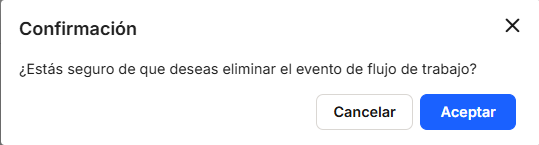
  If you do not need to keep it, launching a popup window to confirm the elimination elimination.
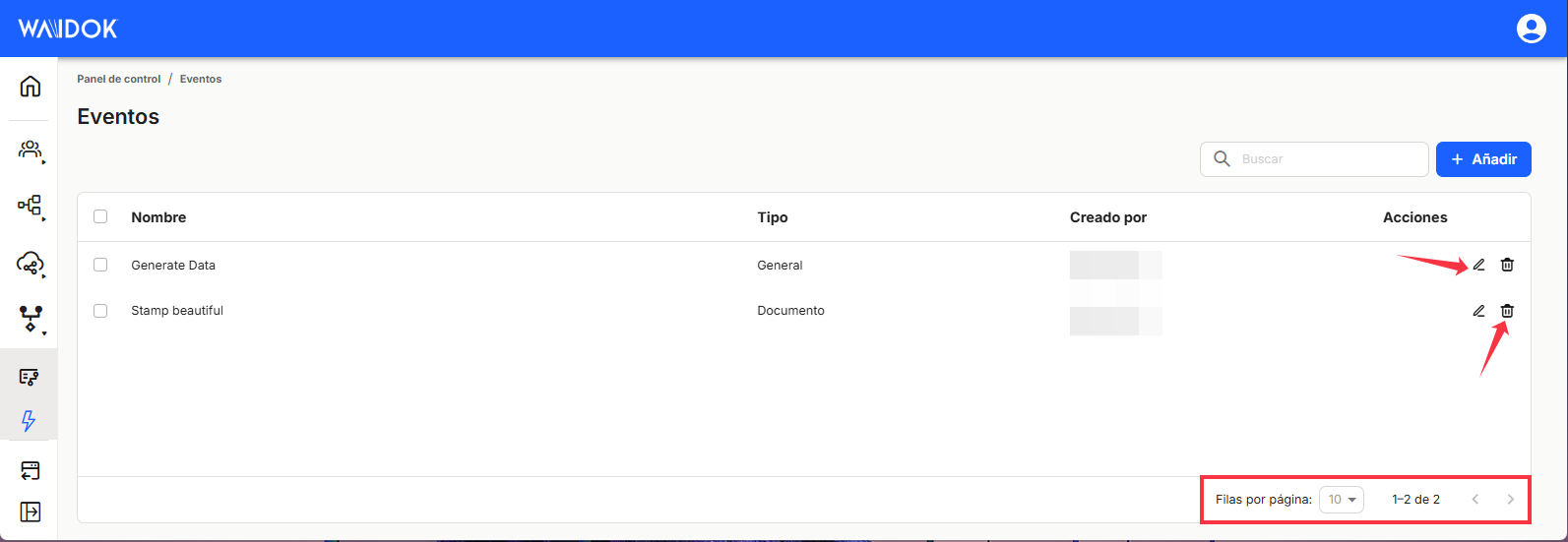
The bottom right of the table shows the total number of events obtained as a result, either without applying any type of search or filter, or after applying one of the possible options. The system displays 10 lines per table and screen by default, allowing 15 lines or 25 lines per table and screen to be displayed. It also allows forward or backward navigation in the lists displayed, depending on the pagination set.

If you have chosen theEdit option, the system will display the same event registration window so you can modify the name or type of event.
Introduction of events in workflows
In order to use an event, in addition to being registered as such, we must enter an activity in a workflow at the beginning that is of the Receive document event or Receive record event type.
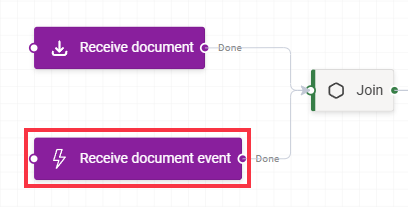
In the example, the workflow will start when a new document is entered or when the event is triggered from a document in Waidok.
Once the corresponding activity has been inserted into the workflow, it will be available to launch from a document or file, depending on the type of event chosen.
For more information on using workflows, we recommend viewing the specific entry on Workflows in this environment.
No comments to display
No comments to display