
Documents. Document viewer and editor
When we view a document, we have certain editing options that do not necessarily change the content itself. In other words, we can make certain changes to a layer above the PDF documents that do not modify the original content of the document.
For more information about the viewer used for this type of document, please read the Manual for Document Viewer & Editor.
By clicking on a document in Waidok or on the display icon  you will access the display window for it.
The first thing we can see in the upper left corner is the "notes" icon:
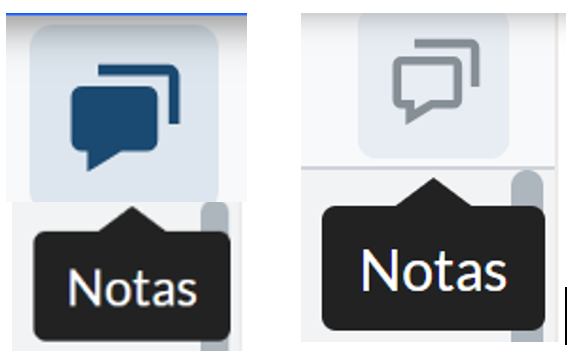
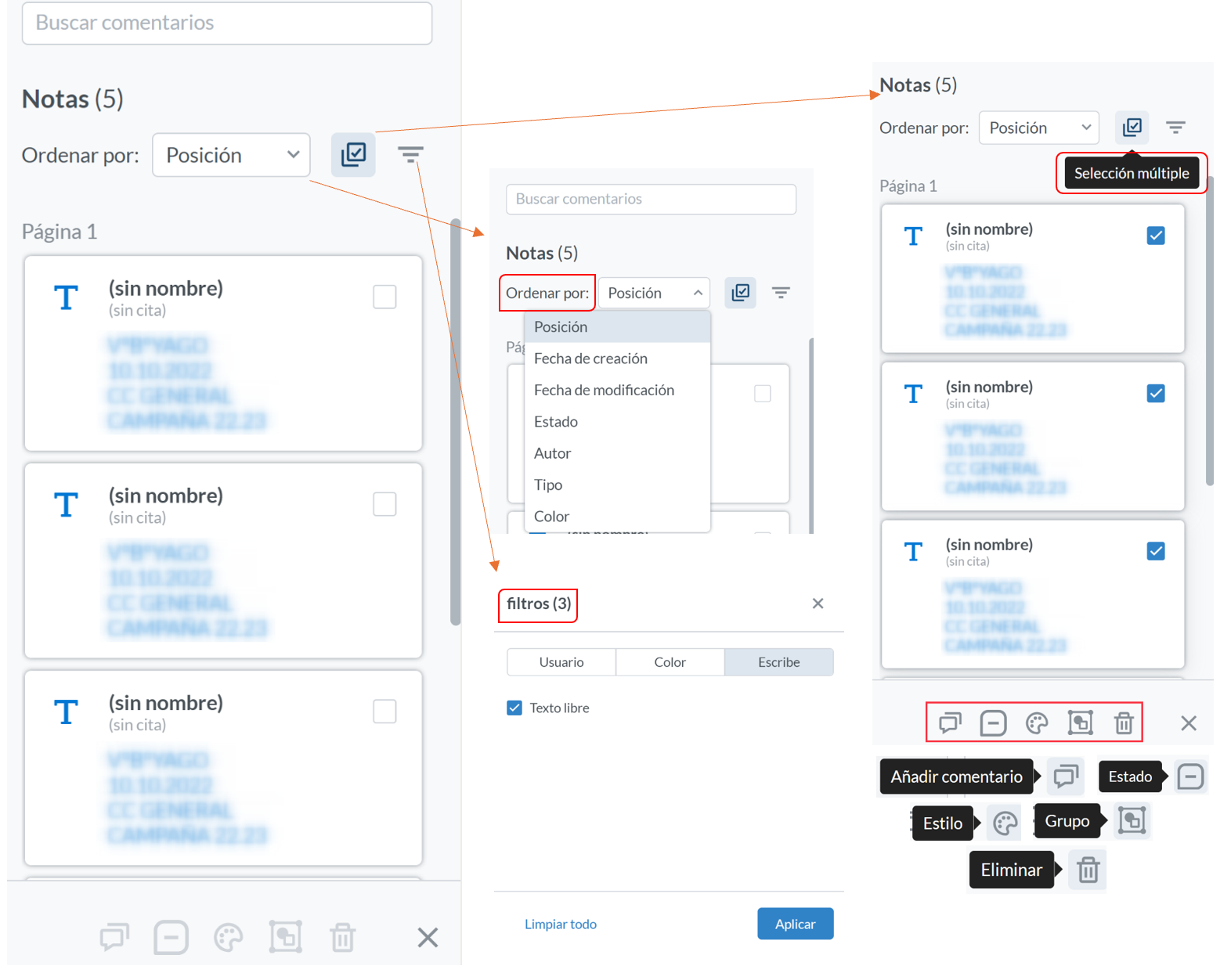
They allow the user to activate or deactivate (icon on the left side) and to see or not to see (icon on the right side) the annotations that have been made on the original document. In addition, this icon adds the functionality of allowing the search for a string of characters, called"search comments", within the notes that the application has located within each of the pages. The new menu that appears, allows to"sort" by different options, select or not multiple comments and change at once in all, certain properties or characteristics and also use 3 types of filters,"user","color" or"type".
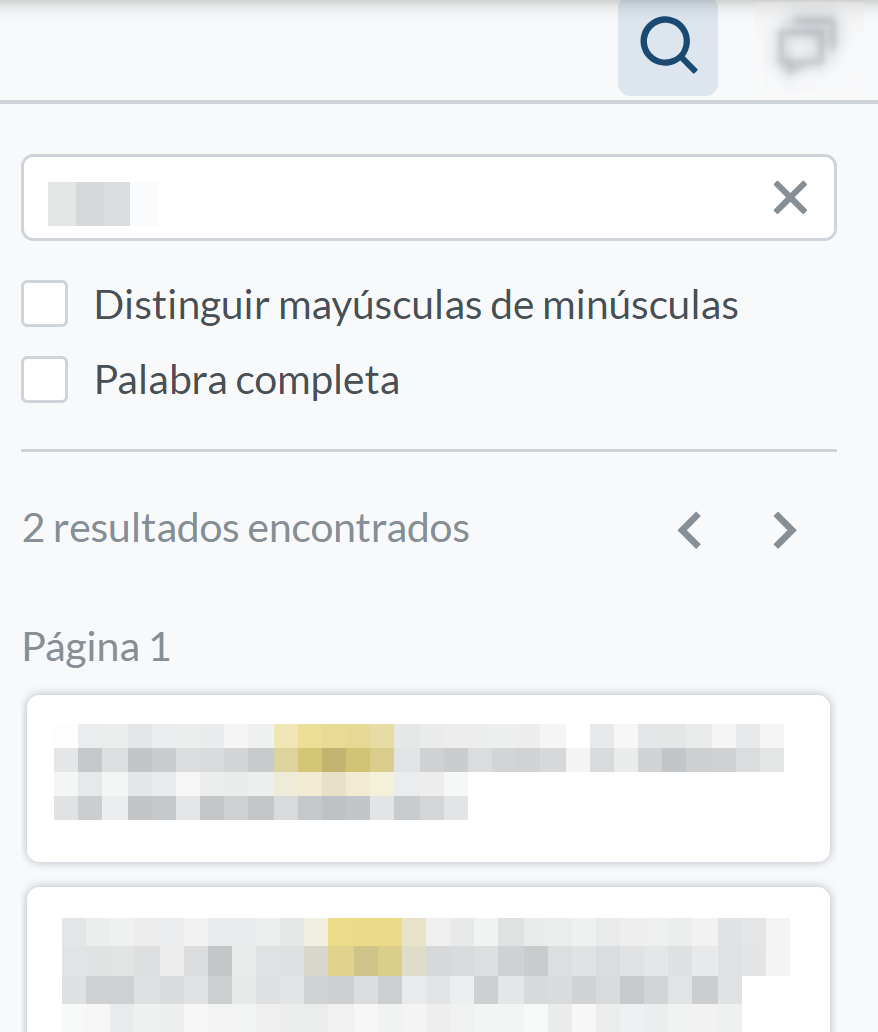
Magnifying glass" icon: Allows searches for character strings found in the data scanned from the documents by the application's OCR or already entered at source.
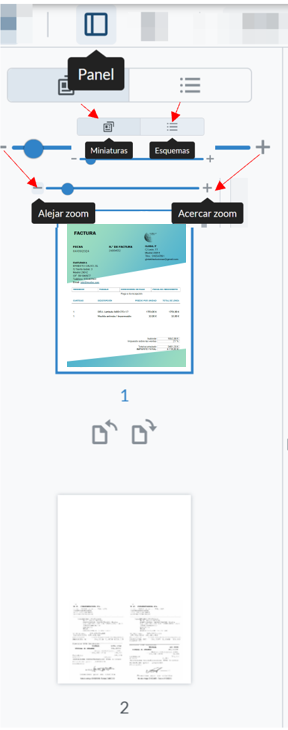
Panel" icon: Allows to display or not the thumbnail or outline panel, depending on the selected option. It also allows you to zoom in or out on the document thumbnails.
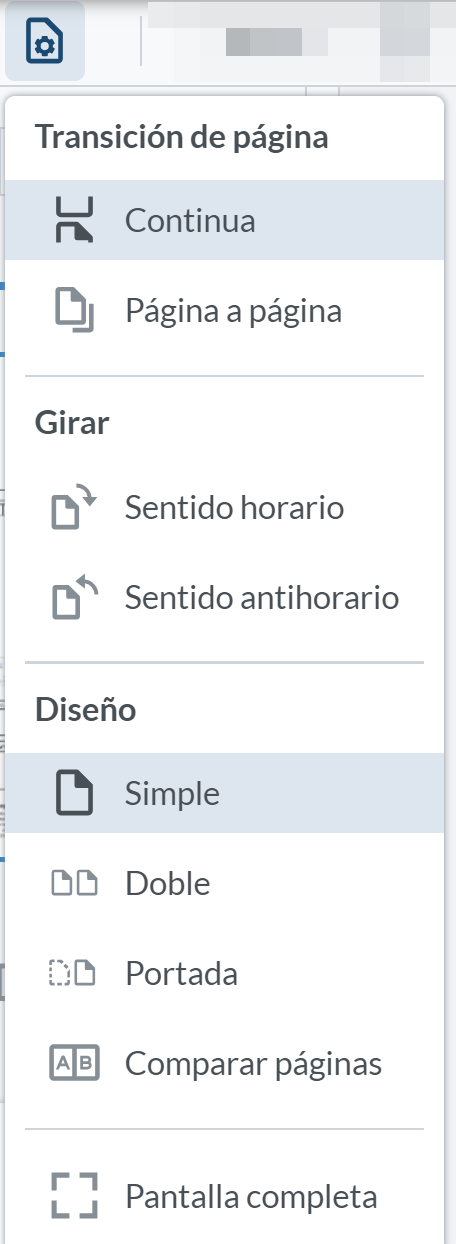
View Controls" icon: Displays different options such as"Page Transition", continuous or page by page;"Rotate",clockwise or counterclockwise;"Layout", single, double, cover or compare pages; full screen.
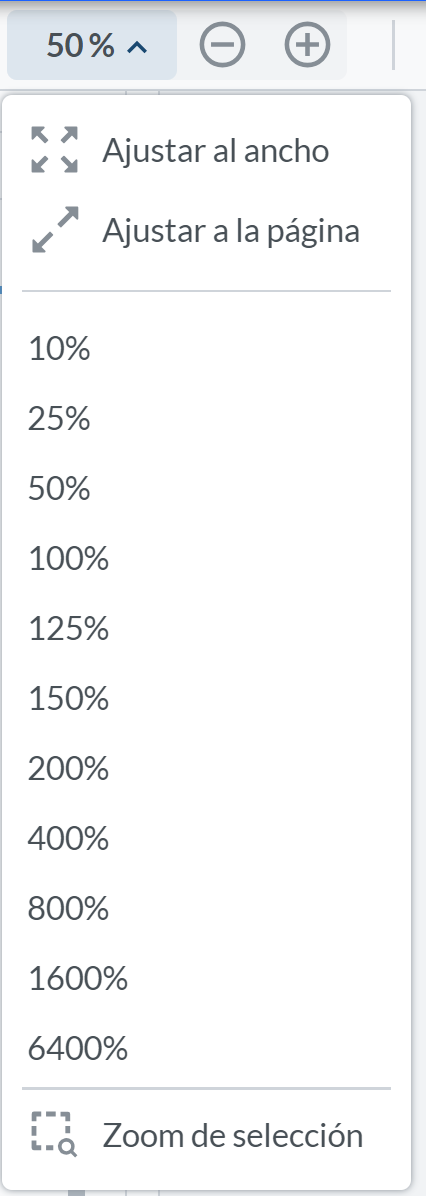
Icon"Drop-down percentage, + and -": Allows you to change the display size of documents in the viewer. The "Fit to width" or "Fit to page" mode can be used. Also a series of preset percentage values, or the "Zoom selection" option.
Pan" icon: Allows you to move through the thumbnails by clicking on each one of them, or to move through the document pages by clicking the left mouse button continuously.
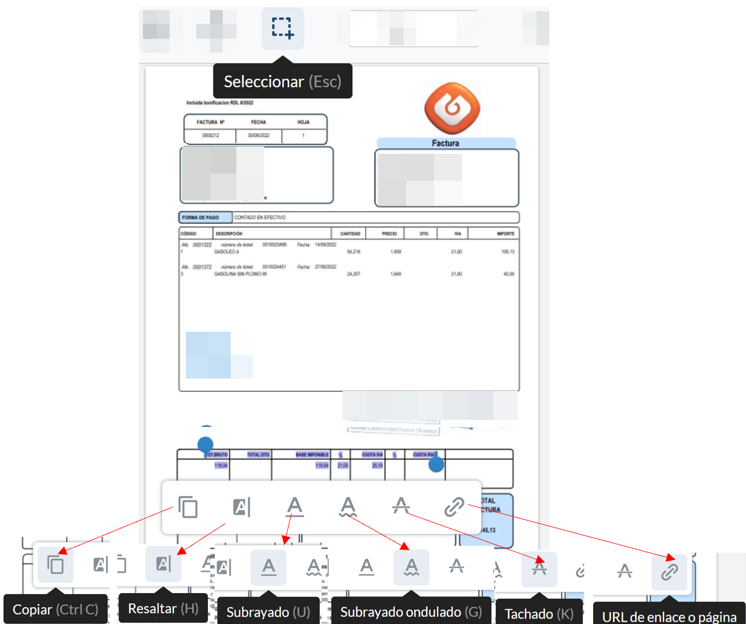
Select" icon: Allows the selection of character strings that are detected in the document, either by the application's OCR or because they come from the document's source. Once characters have been selected in any of the document pages, a submenu is displayed to allow basic editing operations.
View" icon: Allows searches for character strings found in the data scanned from the documents by the application's OCR or already entered at source.
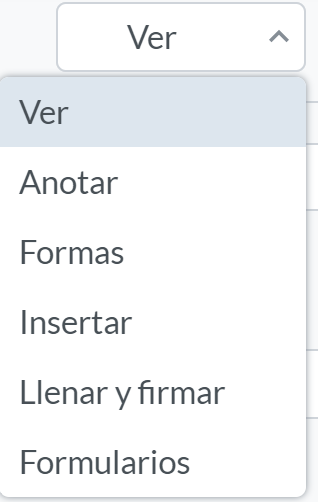
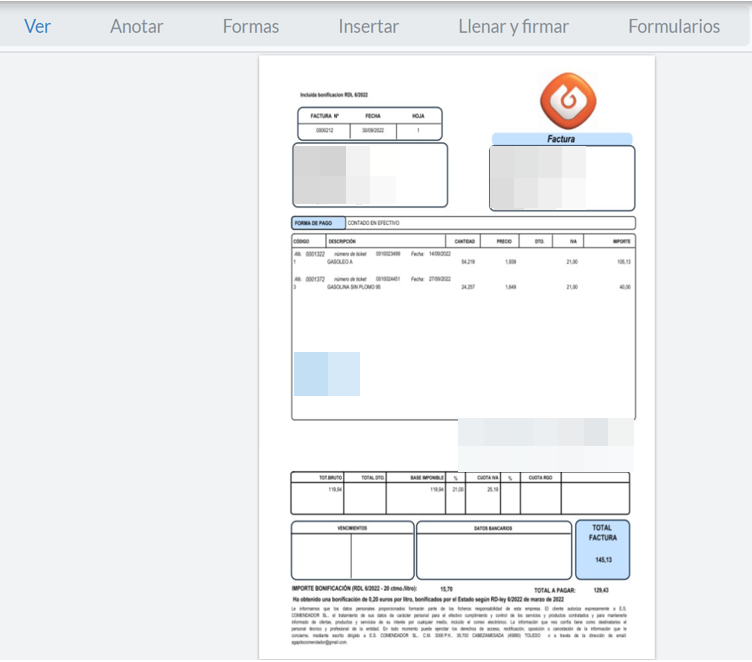
Annotate" icon: Annotations can be made with different character string formats that are found in the scanned data of the documents by the application's OCR or that come from the source.

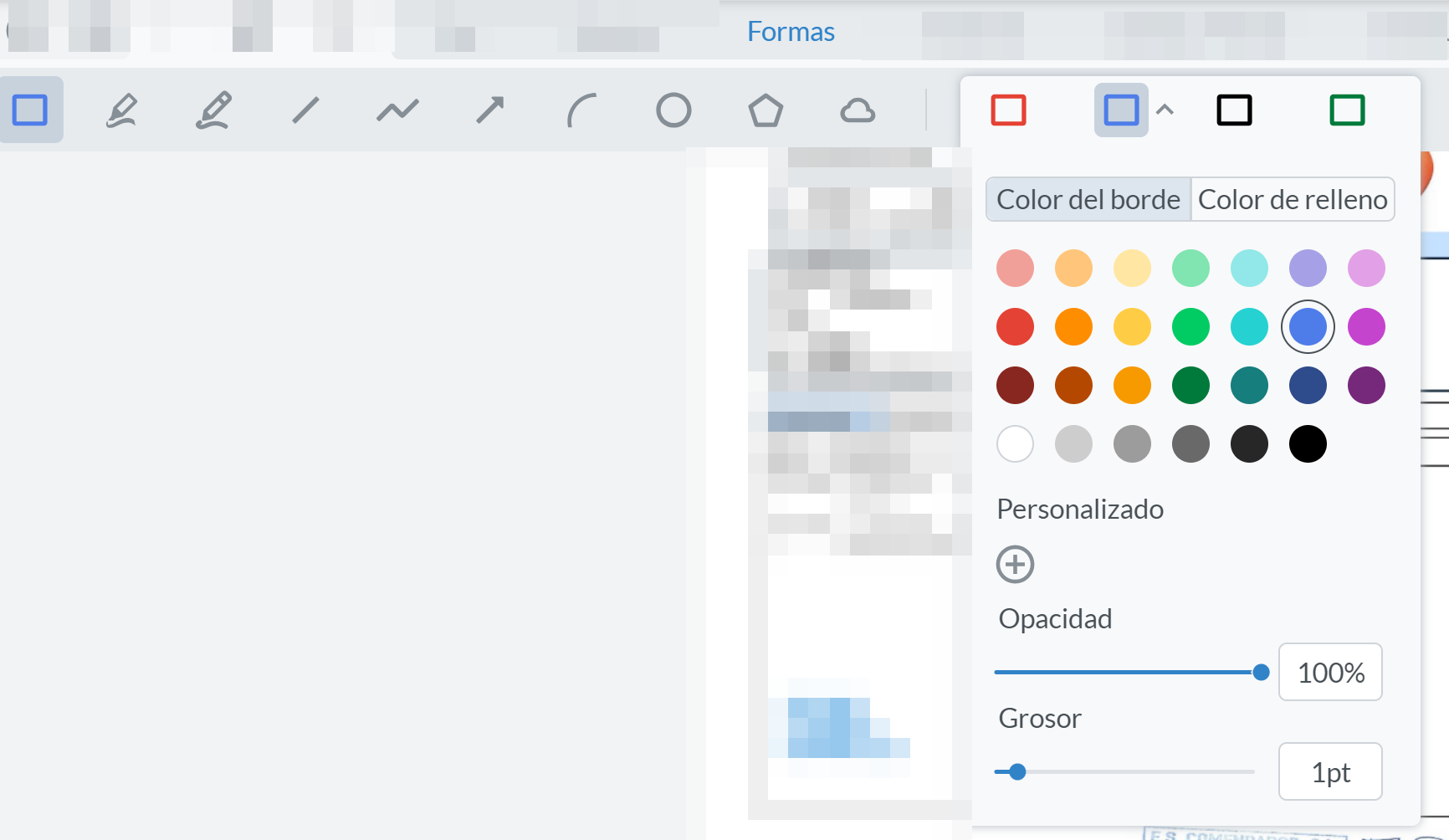
Shapes" icon: Different shapes and colors can be inserted anywhere in the document and deleted.
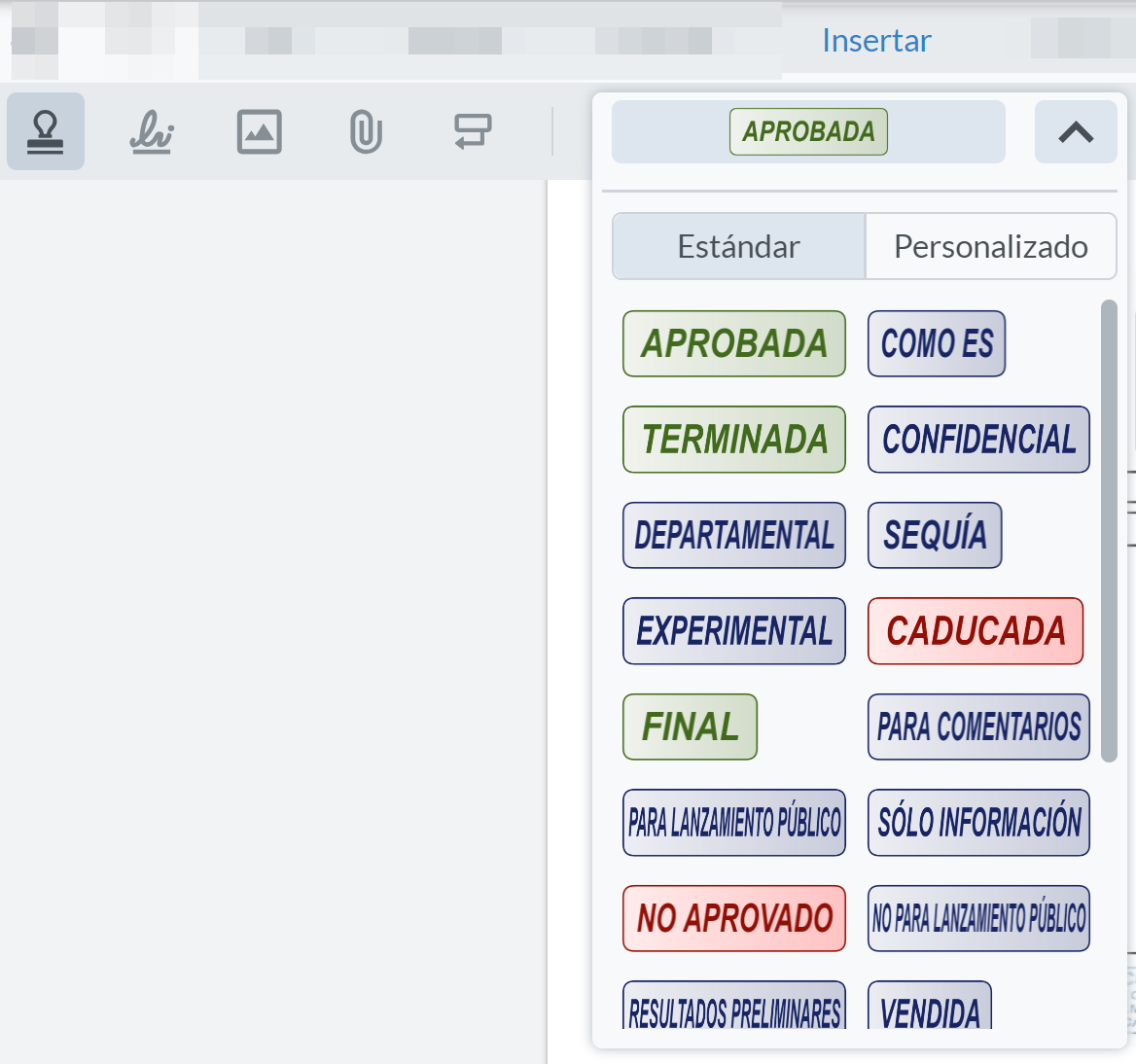
Insert" icon: Allows the insertion of different options, such as stamp, signature, attachment, image or call, as well as default stamps in the viewer. It also allows deletion.
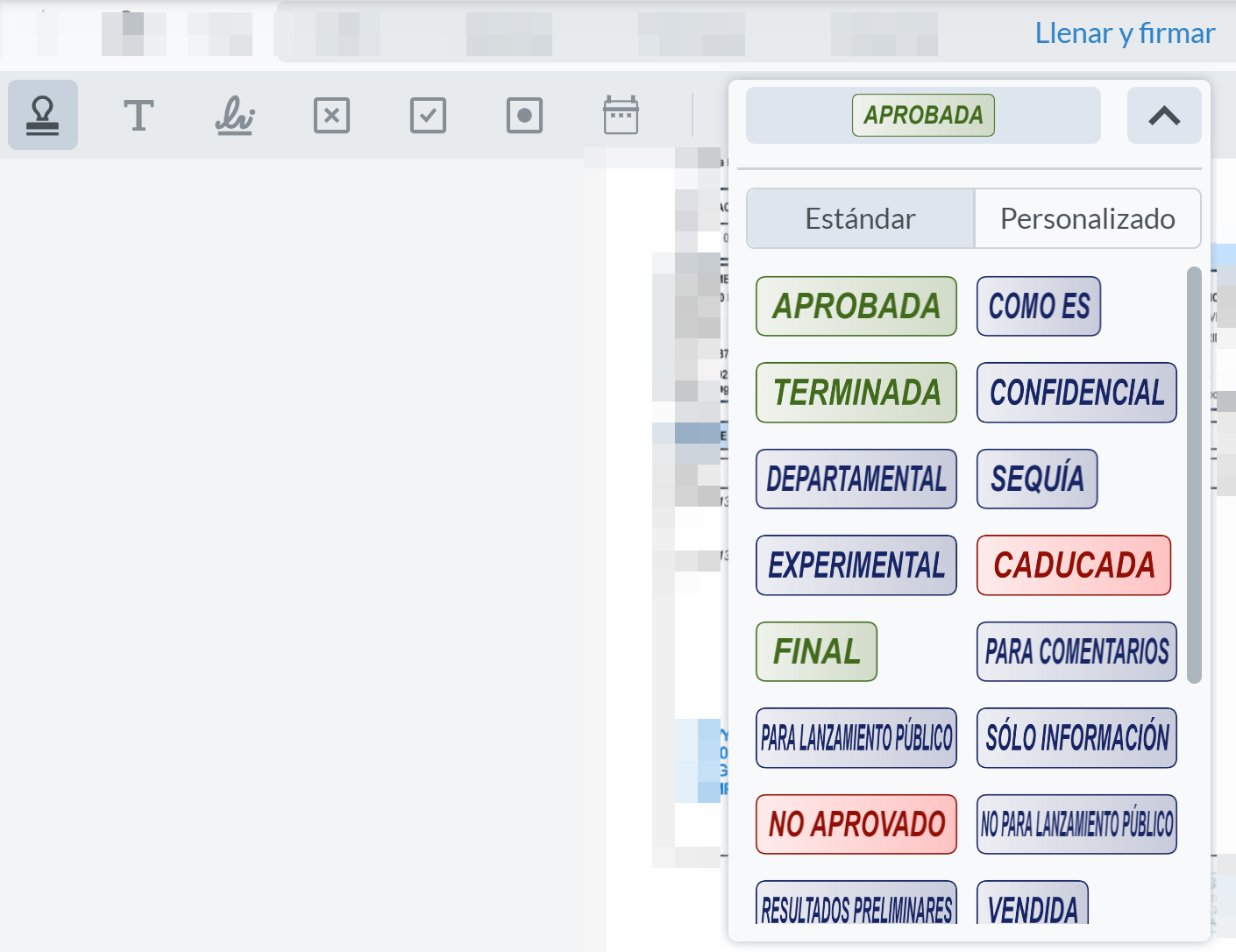
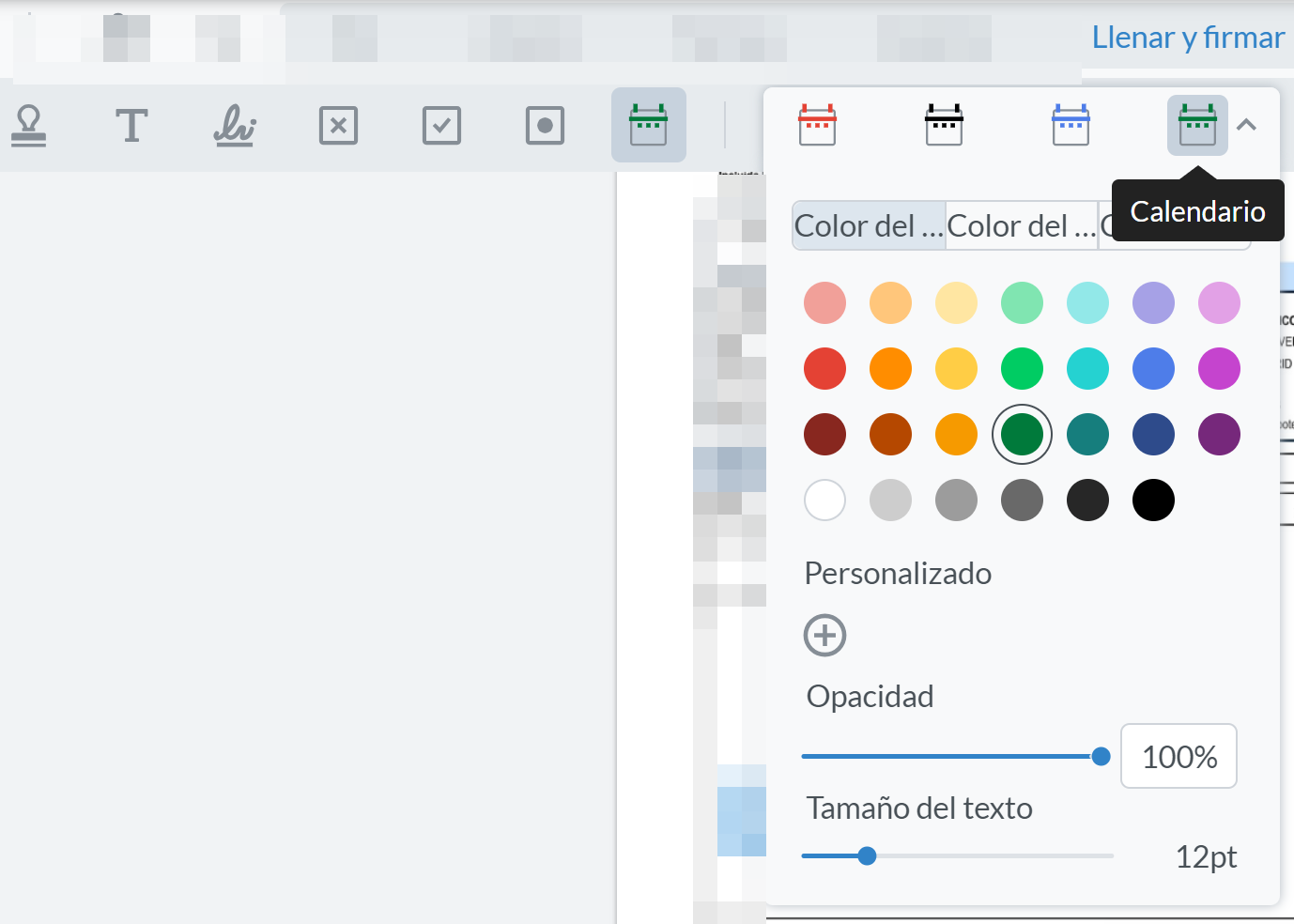
Fill and sign" icon: Allows you to insert rubber stamp, free text, signature, cross, tick, dot, calendar, preset options, undo and delete in the document. Some of these options have submenus or options added to the main options.
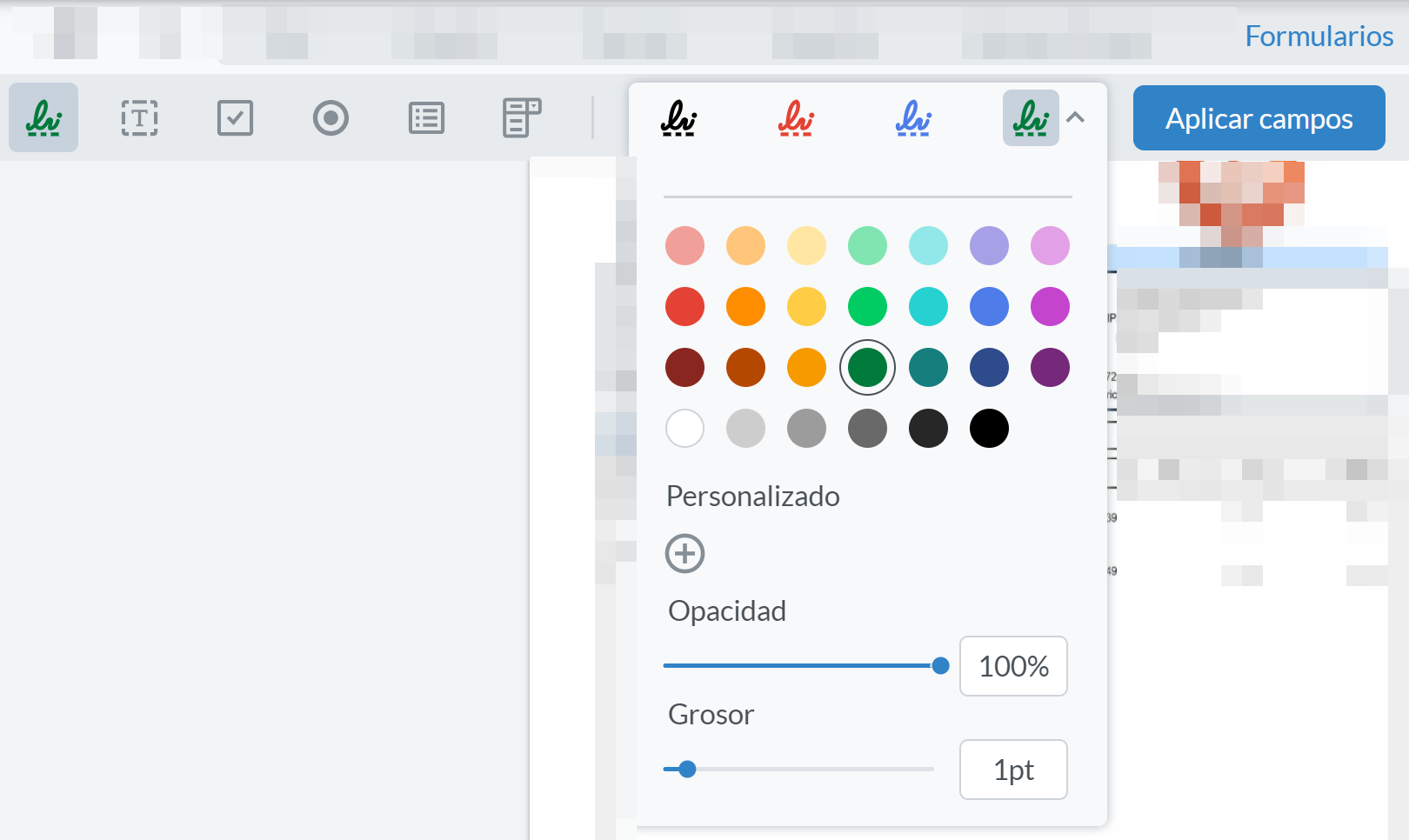
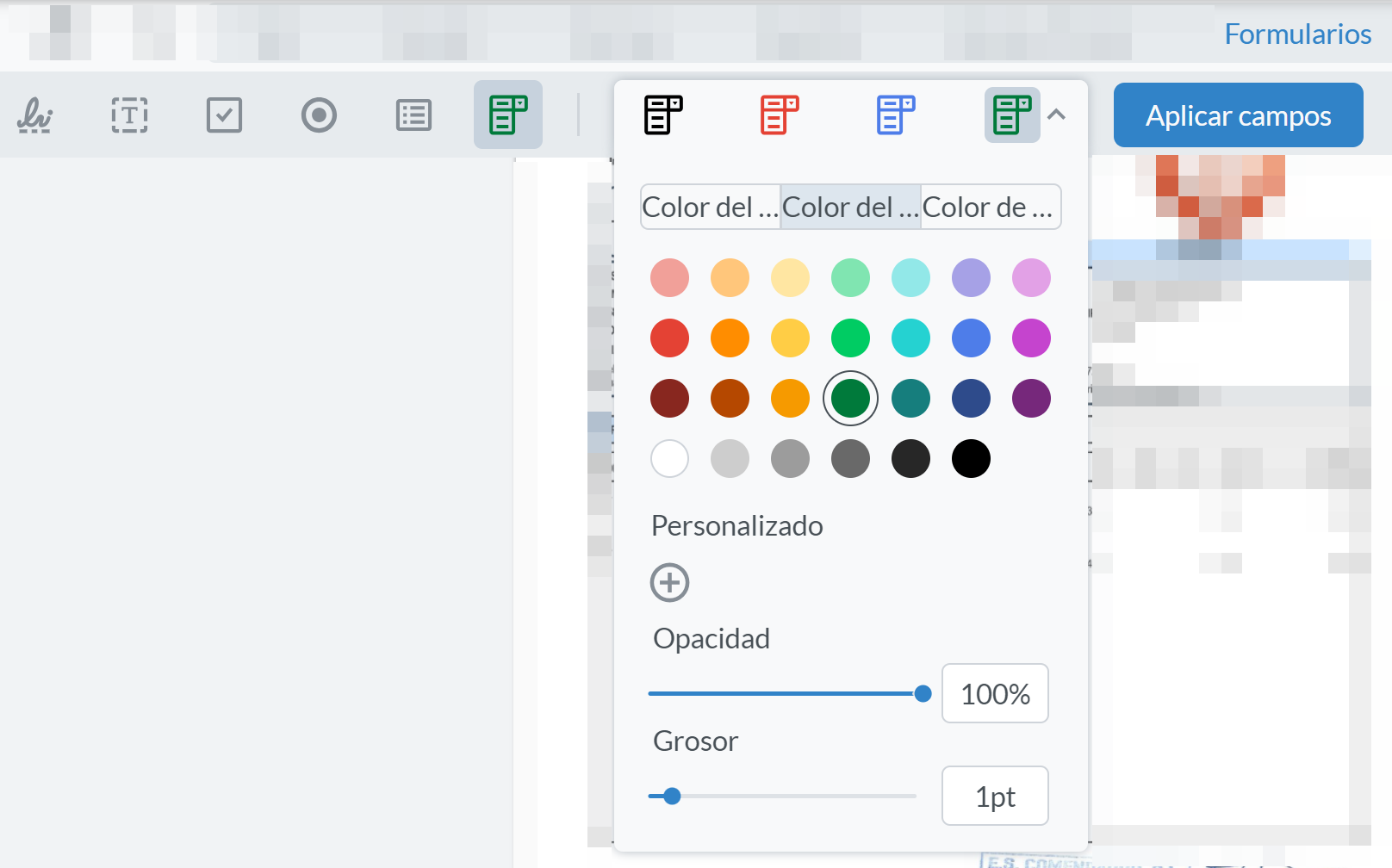
Forms" icon: Allows inserting signature field, text field, checkbox field, radio button field, list box field, combo box field, together with the button to apply fields to the document.
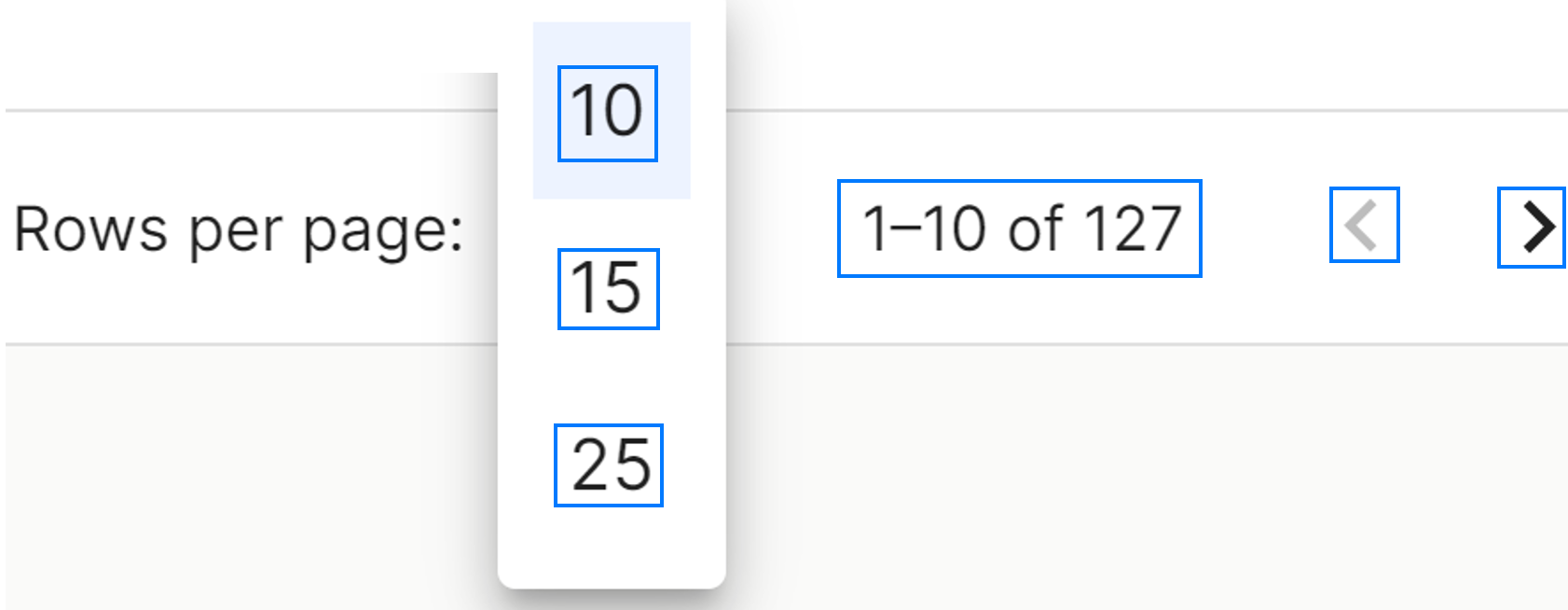
At the bottom right of the table, you can select the number of rows to be displayed, between 10, 15 and 25, and the navigation arrows to scroll through the results.
No comments to display
No comments to display